 Owlect
Views & Search
Different ways to look at your collection — gallery, list, table, and search.
Last updated
View modes
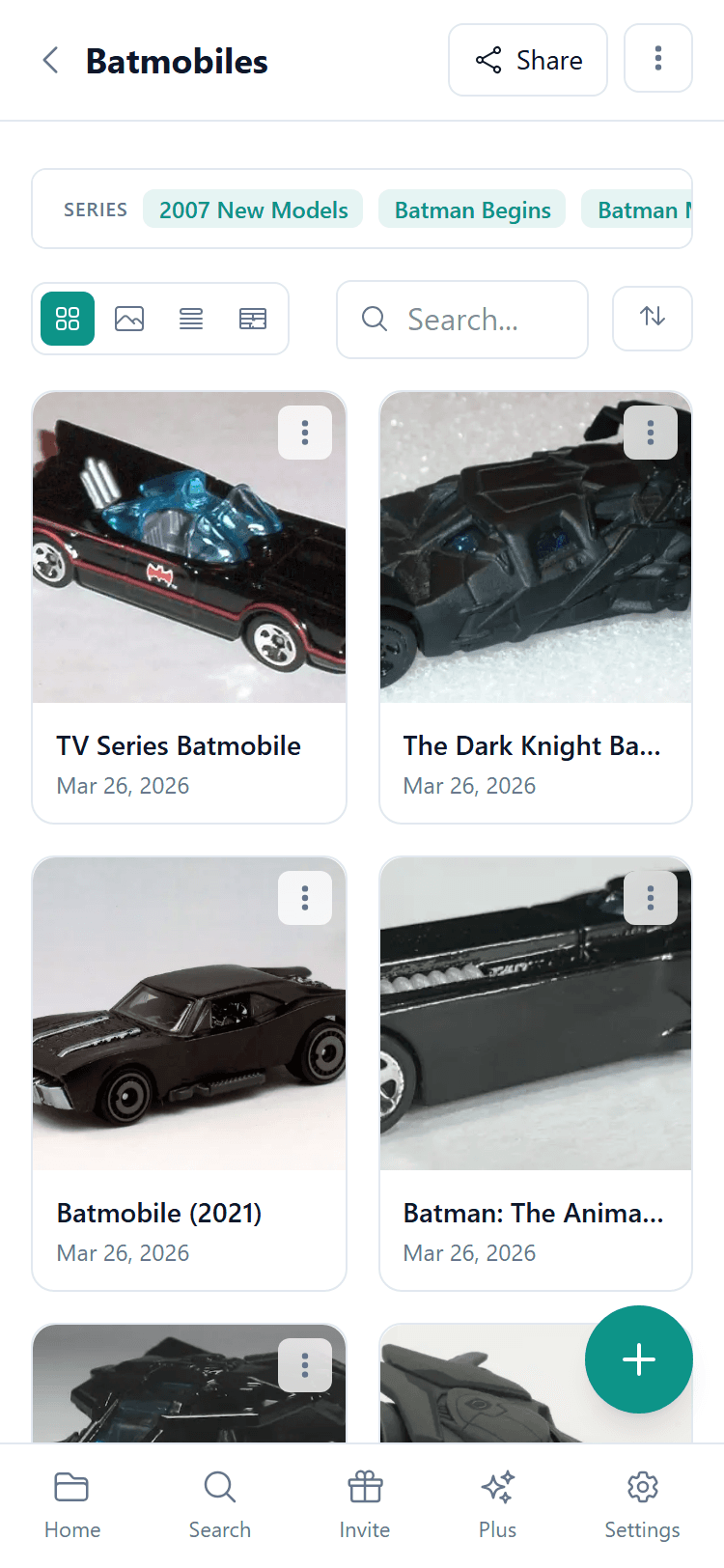
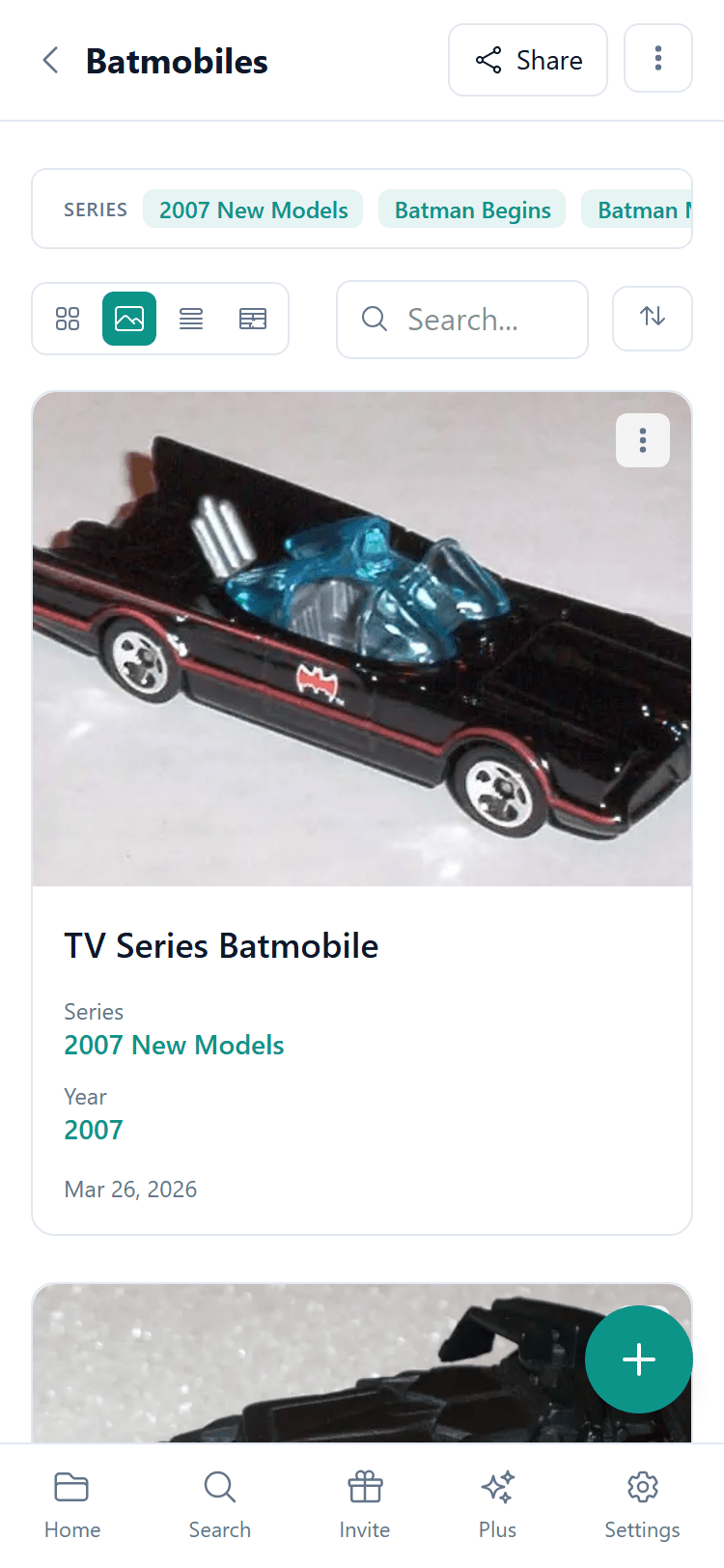
Owlect lets you see your collection in three different ways. Pick the one that works best for you!
Gallery View
The default view. Shows your items as cards with photos in a grid. Great for collections where photos are important, like dolls, sneakers, or music.
List View
Shows your items as a compact list with small thumbnails. Good for quickly scanning through a large collection.
Table View (Sheet)
Shows your items in a spreadsheet-like table with columns for each field. Perfect for collections with lots of data, like board games with player counts and play times.
Sorting
You can sort your collection by:
The collection owner can set a default sort order that also applies to the public shared page.
Searching
Use the search bar at the top to quickly find items in your collection. Just start typing and Owlect filters your items instantly.
The search looks at the item name and all text fields, so you can search for anything — a brand, a color, or a year.
On very narrow screens the in-collection search bar is hidden to save room - tap the magnifier in the top bar to search across all your collections instead.
Switching views
Tap the view icons at the top of your collection to switch between gallery, list, and table. On phones, the gallery view is the default.