 Owlect
Import Your Collection from a CSV File
From spreadsheet to visual catalog in minutes
Import a collection from CSV and turn the spreadsheet you have been maintaining in Excel or Google Sheets into a visual, shareable catalog. Owlect reads your file, auto-maps the columns to collection fields, and shows a preview before anything is created - and it works for every collection type, from dolls to vinyl. No special template is required: the file you already have is almost certainly fine.
How it works
Export your spreadsheet as CSV
In Excel, Google Sheets, or Numbers, save your list as a CSV file. Owlect auto-detects commas, tabs, and semicolons as separators, so the default export from any of these apps works as-is - no cleanup pass required.
Open your collection
Sign in to Owlect and open the collection the items belong to. CSV import is built into every collection type, including custom ones you have created yourself.
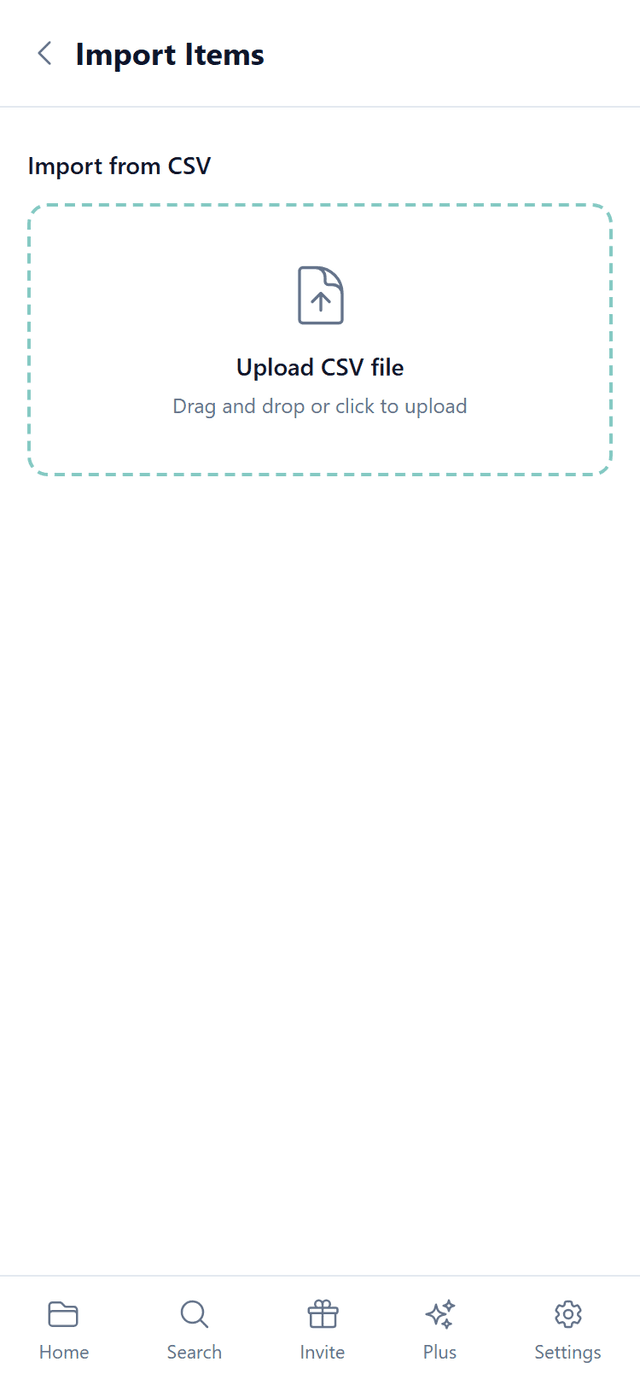
Go to the Import page and upload your file
On the Import page, upload the CSV. Owlect parses it right in your browser and instantly shows a preview of your data - nothing is imported yet at this point.
Review the auto-mapped preview
Owlect matches your column headers to collection fields automatically, recognizing common aliases - “Released” maps to year, “AlbumTitle” to album. Each column gets a dropdown, so you can adjust any mapping before importing. Cover URL and Thumbnail URL columns can be mapped too, bringing your images along.
Tap “Import”
Your items are created in one pass. If your file includes a DiscogsReleaseId column, Owlect even fetches the matching cover art from Discogs afterwards, with a progress bar so you can watch it fill in.
Frequently asked questions
What CSV formats does Owlect understand?
Owlect accepts files separated by commas, tabs, or semicolons and detects the separator automatically - quoted values and line breaks inside cells included. Export from Excel, Google Sheets, Numbers, or LibreOffice with default settings and the file will parse correctly, no special formatting needed.
Do my columns need specific names?
No. Owlect auto-maps columns by field name and common aliases - “Released” is recognized as year, “AlbumTitle” as album. Anything it cannot match confidently is left for you: every column has a dropdown in the preview, so you can point it at the right field before importing.
Can I import cover images from a CSV file?
Yes, two ways. Map a Cover URL or Thumbnail URL column and Owlect uses those links directly - that works for every collection type. Music collections get a bonus: a DiscogsReleaseId column makes Owlect fetch official cover art from Discogs right after the import.
Which collection types support CSV import?
All of them. CSV import is built into every collection type - board games, music, books, coins, LEGO, and any custom type you create. The column mapper simply offers whatever fields your collection has, so the same flow works everywhere.
How many items can I import on the free plan?
The free plan holds up to 100 items in total across up to 3 collections, and imported items count toward that just like items added by hand. If your spreadsheet is bigger than that, Owlect Plus raises the limits substantially.
Helpful resources
More guides
Ready to retire the spreadsheet?
Upload your CSV and watch your collection become a visual catalog: your rows become items, your columns become fields, and your links become cover art. Free to start, no credit card required.
Create a collection