 Owlect
Adding Items
How to add items to your collection - manually or with smart suggestions.
Last updated
Adding items to your collection
There are three ways to add items: type everything in yourself, let Owlect help you with smart suggestions, or scan the barcode.
Adding an item manually
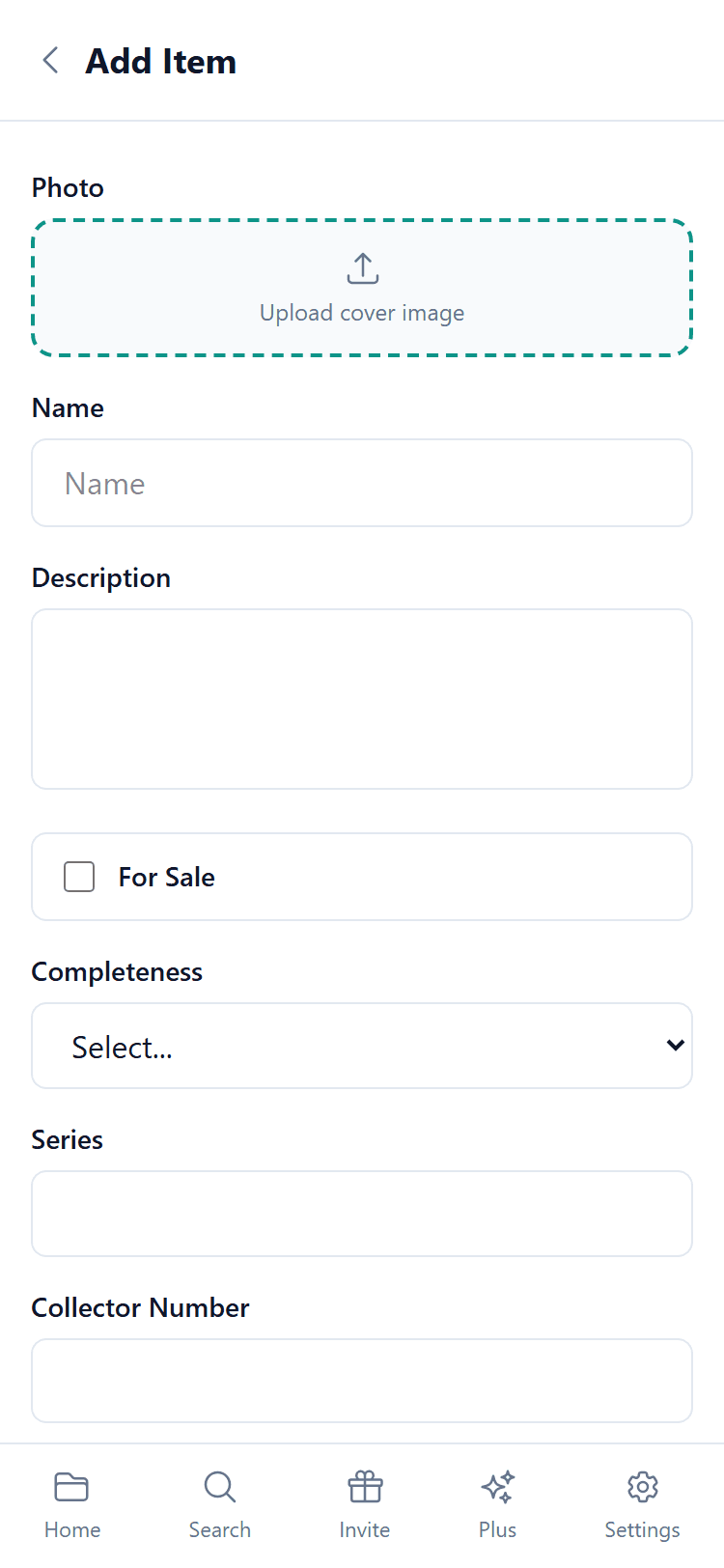
Using smart suggestions
For most collection types, Owlect can find information for you automatically:
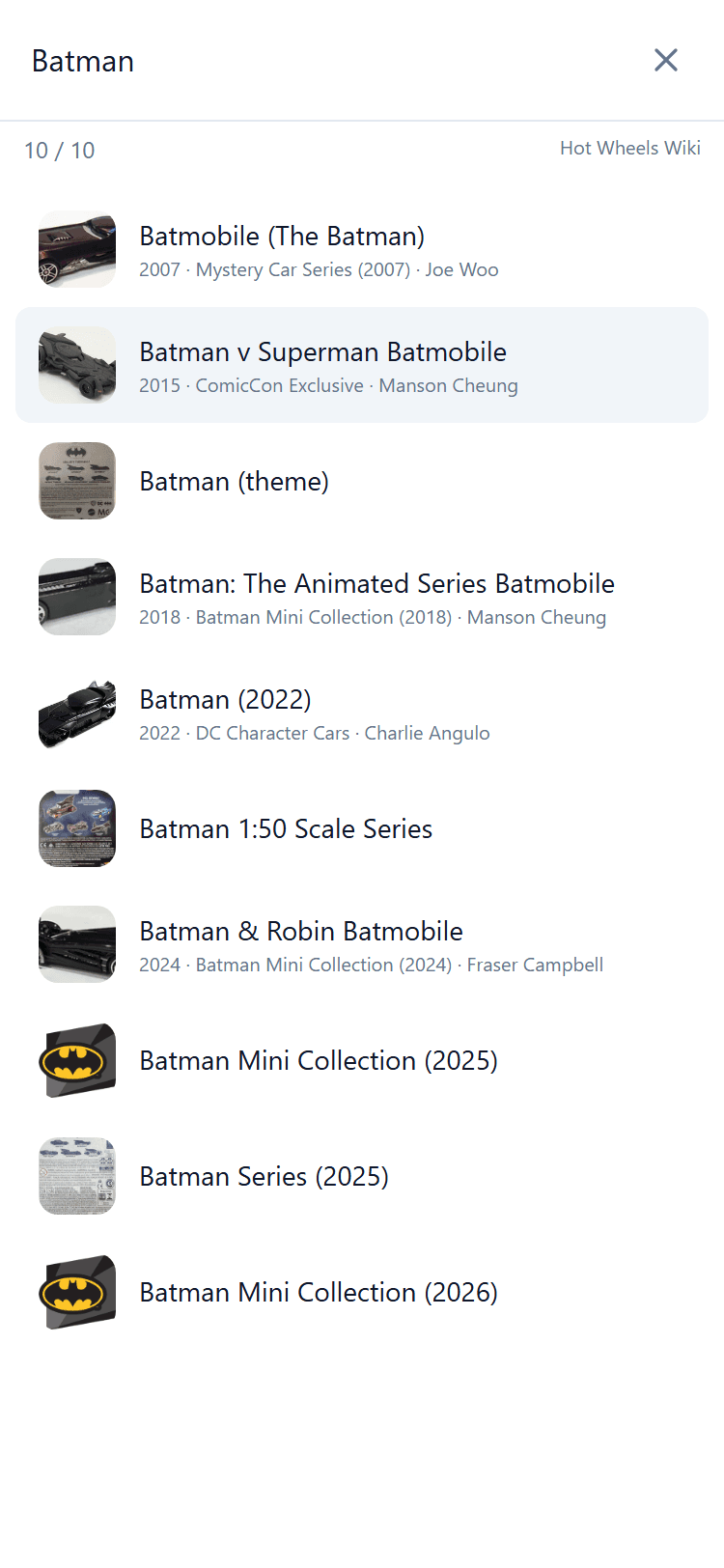
For example:
Scanning a barcode
If the item has a barcode on it, this is the fastest way to add it. Point your camera at the code instead of typing anything.
The item form has its own scan button too, next to the Barcode field. Use that one when you already know where the item is going, or when you want to add the code to an item you created earlier.
Owlect reads the codes printed on everyday retail packaging: EAN-13, EAN-8, UPC-A, UPC-E, and ISBN-13 on books.
Once saved, the barcode stays on the item. Scanning the same code later finds that item in search instead of creating a duplicate, which makes it a quick way to check whether you already own something while you are out.
If the camera does not open
Scanning needs a secure connection and your permission to use the camera. If you decline the prompt, or your browser does not support scanning, the scanner turns into a plain number field. Type or paste the digits under the barcode and everything else works the same way.
What about the photo?
If you use smart search, Owlect often finds a photo automatically. But you can always upload your own photo instead - your photo will be kept and won't be replaced.