Owlect
All articles

Custom Fields

Add your own special fields to track exactly what matters to you.

What are custom fields?

Every collection comes with a name field and a photo. But you probably want to track more details — like the condition of an item, when you bought it, or how much it cost.

That is what custom fields are for! You can add up to **10 custom fields** to each collection.

Types of fields

Here are all the field types you can use:

  • TextFor short text like brand, color, or notes
  • NumberFor numbers like price, year, or quantity
  • SelectA dropdown list where you pick one option (like "Condition: Mint / Good / Fair")
  • Multi-selectPick several options at once (like tags or categories)
  • DateA calendar picker for dates
  • LinkA web address (URL) that you can click
  • RatingA star rating from 1 to 5
  • CheckboxA yes/no toggle (like "Signed" or "Complete in box")
  • ColorA color picker
  • How to add custom fields

  • 1Open your collection
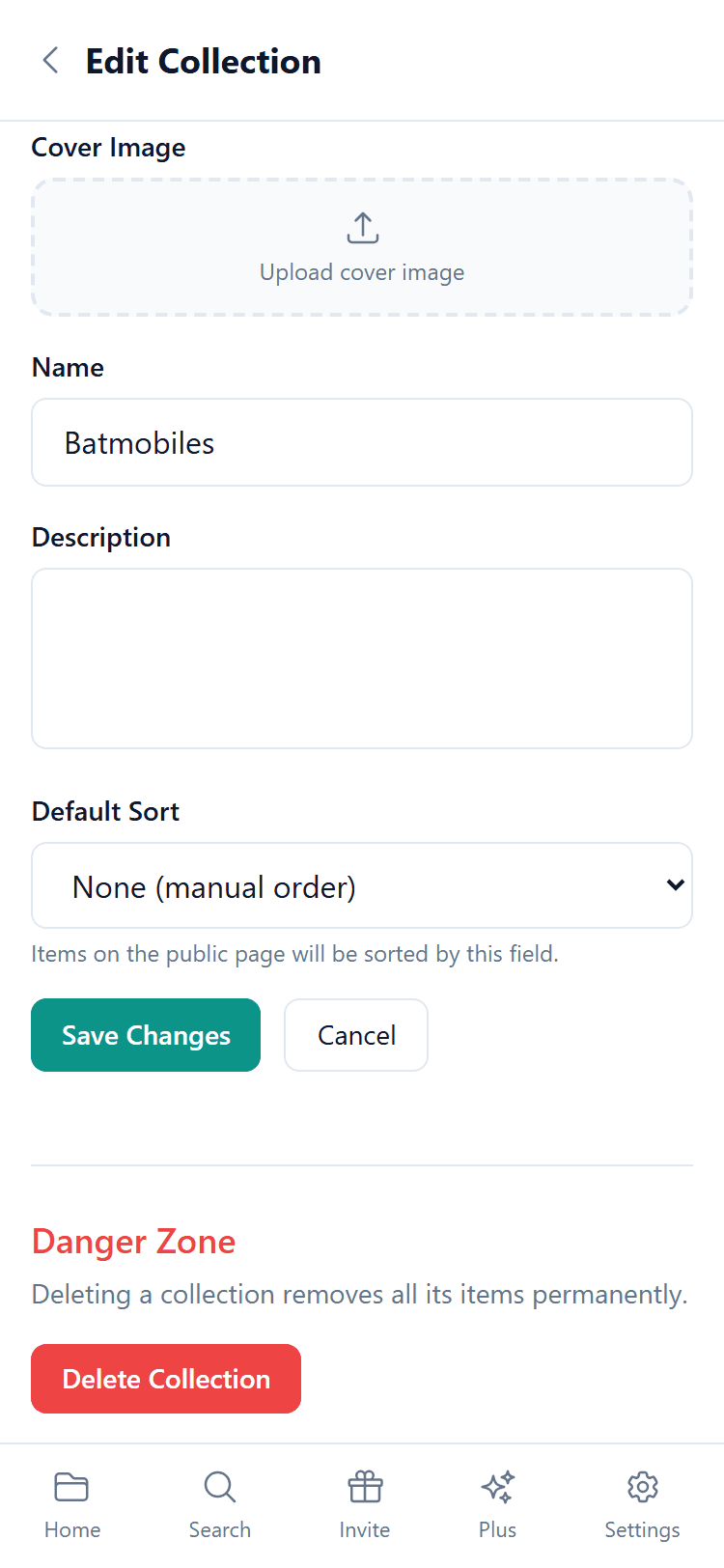
  • 2Go to **Edit Collection**
  • 3Scroll down to the **Fields** section
  • 4Tap **"Add Field"**
  • 5Give the field a name and pick a type
  • 6For Select fields, type in your options (up to 30)
  • 7Save the collection
  • Custom fields

    Ready-made fields

    When you create a collection with a specific type (like "Board Games" or "Vinyl Records"), Owlect suggests fields that make sense for that type. For example:

  • Board Gamesget fields for player count, play time, and game type
  • Vinyl Recordsget fields for artist, album, genre, and label
  • Coinsget a field for country and year
  • You can keep these suggested fields, remove the ones you don't need, or add your own!

    Tips

    You can rename or remove a field at any time by editing the collection. But be careful — removing a field also removes that data from all items in the collection.

    We use cookies for site functionality, traffic analysis, and personalization. We may share cookie data with marketing partners. Learn more